Préparation de fichiers e-Visa Vietnam
Vietnam e-Visa : Incorrect Portrait Photo après un recadrage de photo de passeport
Le portail Vietnam e-Visa demande un portrait pris récemment et une image de la page de données du passeport dans deux champs distincts. Des demandeurs signalent qu’un recadrage du visage du passeport placé dans le champ du portrait a été refusé comme « incorrect portrait photo », ou que la même image dans les deux champs a entraîné une reprise ou un traitement plus long ; ces signalements ne constituent pas une interdiction officielle.
Vérifié: 2026-08-14
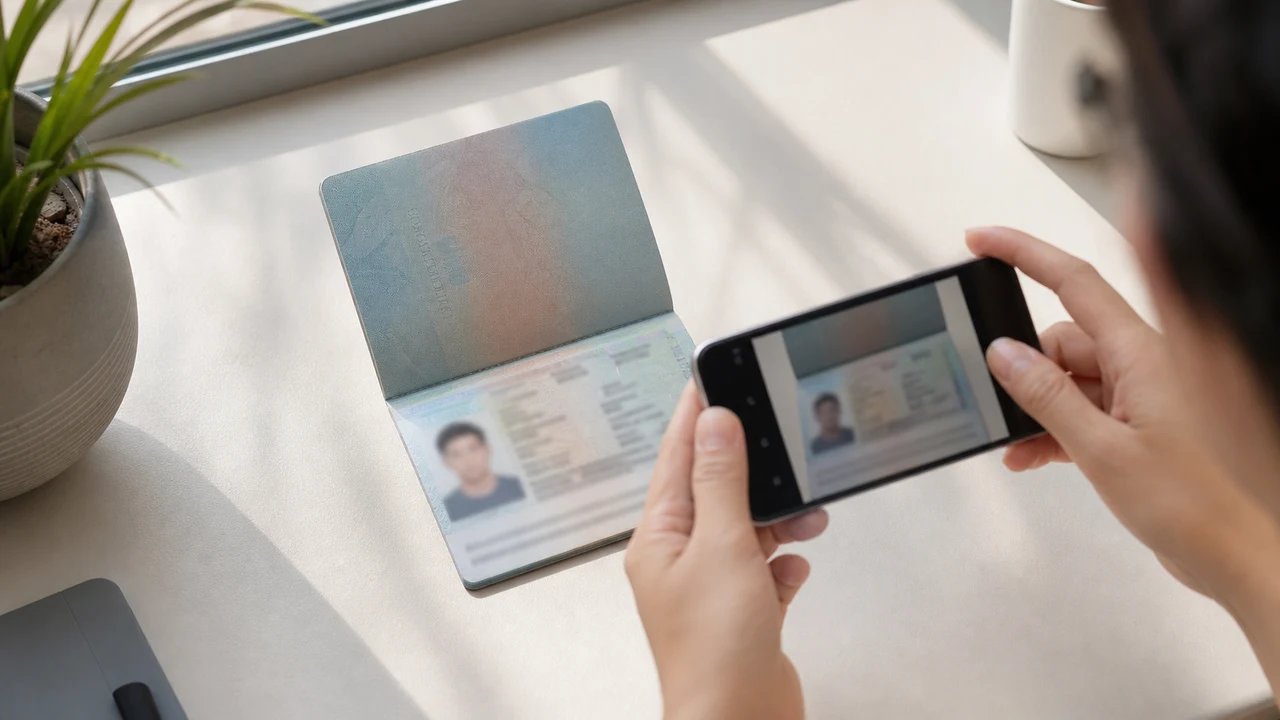
Les conditions photo à vérifier en premier
- Le portail demande deux fichiers séparés : un portrait récent et une image de la page de données du passeport.
- Des demandeurs signalent le refus de recadrages de photo de passeport et des reprises après duplication ; ce ne sont pas des règles officielles publiées.
- Préparez un portrait récent pour le champ du portrait et gardez l’image du passeport pour son propre champ.
- Avant l’envoi, vérifiez que chaque fichier correspond au bon champ et suit les instructions publiées pour le portrait.
Pourquoi un recadrage de photo de passeport peut être signalé comme « Incorrect Portrait Photo »
Across applicant reports, people have described taking the face area from a passport Data Page image and using that crop as the portrait upload. Some reports describe an “incorrect portrait photo” rejection, while others describe rework or longer processing after the same image was selected for both upload fields.
These are observations reported by applicants, not a published official prohibition. The official portal instructions describe the portrait and passport Data Page as separate uploads; they do not state that a passport photo crop is prohibited.
Séparez les deux champs d’envoi
The official user manual shows a portrait upload and a passport Data Page upload as separate steps. It also shows automatic validation, personal-data extraction, and a submission block when an image is invalid.
That official flow explains why the two fields should be treated as different files. It does not publish the exact rule that produces an “incorrect portrait photo” message or any processing-time threshold.
Préparez correctement les deux fichiers
- Take a new portrait for the portrait field instead of cropping the face from the passport Data Page image.
- Use the published portrait instructions: 4 × 6 cm, JPG / JPEG, under 2 MB, white background, straight face, no hat, no glasses, and formal clothes.
- Use the passport Data Page image only in the passport upload field, keeping the page clear and its corners visible.
- Before selecting each file, check the preview or filename so the portrait and passport images are not swapped.
- If the portal reports an incorrect portrait, prepare a fresh portrait and keep the two upload fields separate rather than duplicating one file.
Exigences publiées pour le portrait sur le portail officiel
- The official portal lists a newly taken 4 × 6 cm portrait in JPG / JPEG, under 2 MB, with a white background, a straight face, no hat, no glasses, and formal clothes.
- The portal also asks for a clear passport Data Page image. Keep that image complete and readable; do not treat its face area as the portrait file.
- The official instructions do not publish a pixel similarity score, crop ratio, or other numeric boundary for deciding whether a portrait is accepted.
Ce qu’un signalement de portrait incorrect indique ou n’indique pas
An applicant report can tell you that this combination of files was rejected or required another attempt. It cannot establish that the portal has a universal “passport crop” rule, nor can it reveal the exact automated check behind the message.
Use the report as a reason to separate the files and follow the published portrait instructions, not as evidence of an unpublished government requirement.
Préparez un nouveau portrait sans modifier votre identité
A face-photo workflow can help prepare a 4 × 6 cm portrait JPEG from a new capture. It does not decide whether the official portal will accept the file and cannot guarantee the portal’s validation result.
Keep the portrait truthful and use the passport Data Page image as the separate document upload. Do not digitally alter the face to imitate the passport image or to bypass the portal’s checks.
Guides Vietnam e-Visa associés pour l’envoi
For a broader file checklist, start with the guides below. They stay within the same official portal upload flow.
Créez votre photo dans le navigateur
Préparez la photo pour e-Visa Vietnam directement dans le navigateur de votre téléphone ou ordinateur. La création et la vérification sont gratuites.
Ouvrir l’outil webCe que cet outil crée
- la photo d’identité requise (pour dépôt numérique)
- la page d’identité du passeport (page photo) (pour téléversement de document)
Disponible également dans l’app iPhoneOuvrir l’App Store
Note sur les sources officielles
La photo d’identité et l’image de la page de données du passeport suivent les instructions du système de visa électronique national vietnamien. L’application prépare les fichiers ; la demande de visa elle-même est soumise sur le portail officiel evisa.gov.vn.
Les conditions photo qui peuvent poser problème
Un petit nombre de problèmes récurrents peut entraîner des refus de fichiers e-Visa. Ces vérifications réduisent les erreurs de téléversement, mais ne garantissent pas l'acceptation de votre photo ou de votre demande.
-
Fond gris ou à motifs
Les ombres, couleurs ou textures derrière la tête provoquent souvent un refus. Utilisez un mur blanc uni ou très clair et avancez-vous pour adoucir l'ombre.
-
Reflets sur les lunettes ou yeux cachés
Les reflets et les montures couvrant les yeux sont une cause majeure de refus de photo. Retirer les lunettes avant la prise de vue est le choix le plus sûr.
-
Page de données du passeport illisible
Si les lignes MRZ, le nom ou le numéro de passeport sont flous ou masqués par des reflets, le fichier peut être refusé même si la photo du visage est correcte.
-
Fichier trop volumineux ou format incorrect
Exportez un JPG / JPEG sous la limite officielle de 2 Mo. Un PNG ou un fichier trop volumineux peut être refusé au téléversement même si l'image semble correcte.
-
Cheveux sur les yeux ou tête inclinée
Les cheveux sur les sourcils ou les yeux et une tête inclinée rendent la vérification difficile. Gardez la tête droite et les cheveux hors du visage.
Pourquoi utiliser shoumei.org pour les fichiers Vietnam e-Visa
Export exact 4 × 6 cm / 2:3
L'application produit un JPEG de 1200 × 1800 px qui correspond au ratio portrait du e-Visa Vietnam, évitant dès le départ le problème du recadrage carré.
Moins de 2 Mo avec détails lisibles
Elle compresse le JPEG sous la limite officielle de taille tout en conservant les détails du visage et le texte du passeport aussi lisibles que le permet l'image source.
Guides de fond et d'alignement du visage
Les guides intégrés permettent de centrer le visage, de laisser des marges correctes et de vérifier le fond blanc avant l'export.
Confidentialité sur l'appareil
Le traitement de l'image reste sur votre appareil. Aucune photo ou image de passeport n'est envoyée vers un serveur via shoumei.org.
shoumei.org est un outil indépendant de préparation de fichiers. Elle n'est pas affiliée au gouvernement vietnamien ni au portail evisa.gov.vn, et son utilisation ne garantit pas l'acceptation ou l'approbation de votre photo, de votre image de passeport ou de votre demande de visa.
FAQ
Puis-je utiliser un recadrage de ma photo de passeport comme portrait Vietnam e-Visa ?
Do not use the passport Data Page image as the portrait upload. The official portal treats the portrait and passport image as separate fields, while applicant reports describe passport-photo crops being rejected as an incorrect portrait; the reports are not an official prohibition.
Pourquoi éviter la même image dans les deux champs d’envoi Vietnam e-Visa ?
The two fields represent separate uploads in the official portal flow. Applicant reports describe duplicated or swapped files leading to rework or longer processing, but they do not establish a published official processing rule.
Que doit contenir le fichier portrait Vietnam e-Visa ?
Use a newly taken 4 × 6 cm JPG / JPEG portrait under 2 MB, with a white background, a straight face, no hat, no glasses, and formal clothes. Upload the passport Data Page image separately.
L’outil photo peut-il garantir l’acceptation du nouveau portrait par le portail ?
No. The tool can help prepare the portrait output, but the official portal performs its own validation and acceptance decision. Keep the two upload fields separate and confirm the latest portal instructions before submitting.
Sources officielles
- Vietnam e-Visa — Official portal photo upload terms (evisa.gov.vn) Vérifié: 2026-08-14
- Vietnam e-Visa — Official user manual / application instructions Vérifié: 2026-08-14