Chuẩn bị tệp Vietnam e-Visa
Vietnam e-Visa: Incorrect Portrait Photo sau khi cắt ảnh hộ chiếu
Cổng Vietnam e-Visa yêu cầu ảnh chân dung chụp mới và ảnh trang dữ liệu hộ chiếu ở hai ô tải lên riêng biệt. Một số người nộp đơn báo rằng cắt khuôn mặt từ ảnh hộ chiếu rồi dùng ở ô chân dung bị từ chối với thông báo “incorrect portrait photo”, hoặc dùng cùng một ảnh ở cả hai ô khiến phải làm lại hay xử lý lâu hơn; đây không phải là lệnh cấm chính thức.
Đã kiểm tra: 2026-08-14
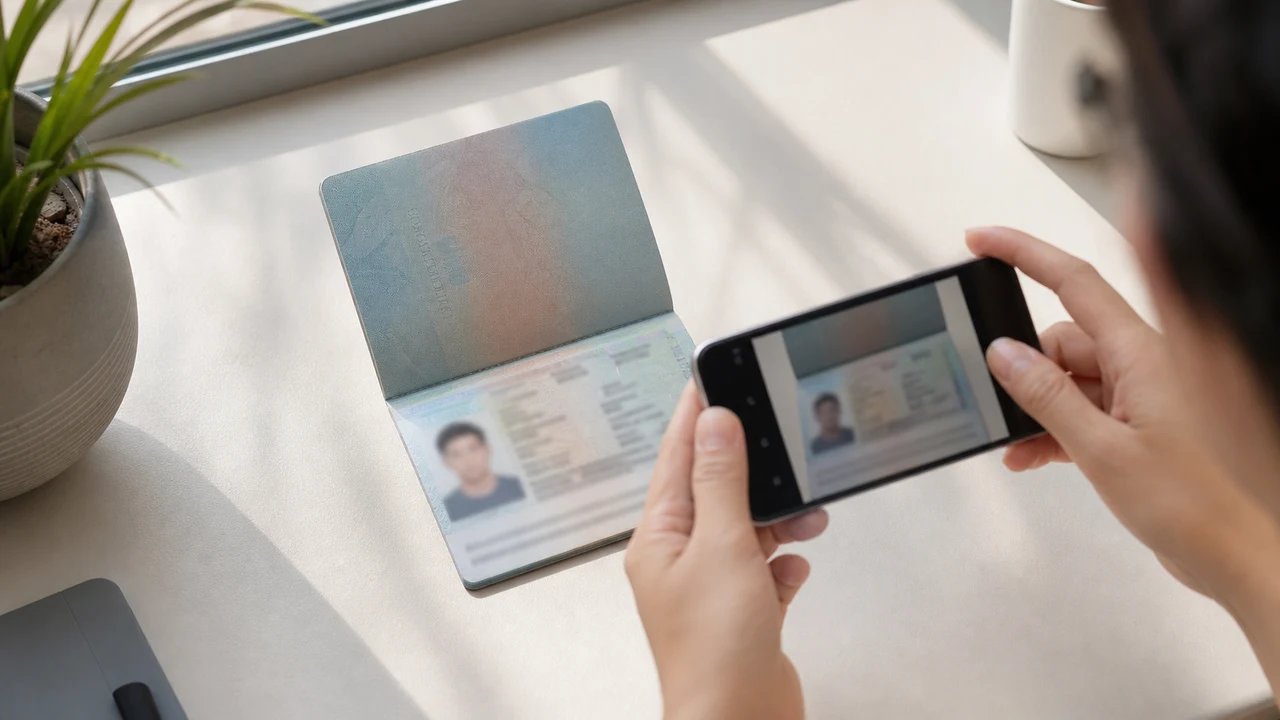
Các điều kiện ảnh cần kiểm tra trước tiên
- Cổng yêu cầu ảnh chân dung mới và ảnh trang dữ liệu hộ chiếu ở hai lần tải lên riêng.
- Báo cáo của người nộp đơn đề cập đến việc từ chối ảnh cắt từ hộ chiếu và phải làm lại khi trùng tệp; đó không phải là quy tắc chính thức đã công bố.
- Chuẩn bị ảnh chân dung mới cho ô chân dung và để ảnh hộ chiếu ở ô hộ chiếu.
- Trước khi tải lên, kiểm tra mỗi tệp thuộc đúng ô và tuân theo hướng dẫn chân dung đã công bố.
Vì sao ảnh cắt từ hộ chiếu có thể bị báo là “Incorrect Portrait Photo”
Across applicant reports, people have described taking the face area from a passport Data Page image and using that crop as the portrait upload. Some reports describe an “incorrect portrait photo” rejection, while others describe rework or longer processing after the same image was selected for both upload fields.
These are observations reported by applicants, not a published official prohibition. The official portal instructions describe the portrait and passport Data Page as separate uploads; they do not state that a passport photo crop is prohibited.
Tách riêng hai ô tải lên
The official user manual shows a portrait upload and a passport Data Page upload as separate steps. It also shows automatic validation, personal-data extraction, and a submission block when an image is invalid.
That official flow explains why the two fields should be treated as different files. It does not publish the exact rule that produces an “incorrect portrait photo” message or any processing-time threshold.
Chuẩn bị đúng hai tệp
- Take a new portrait for the portrait field instead of cropping the face from the passport Data Page image.
- Use the published portrait instructions: 4 × 6 cm, JPG / JPEG, under 2 MB, white background, straight face, no hat, no glasses, and formal clothes.
- Use the passport Data Page image only in the passport upload field, keeping the page clear and its corners visible.
- Before selecting each file, check the preview or filename so the portrait and passport images are not swapped.
- If the portal reports an incorrect portrait, prepare a fresh portrait and keep the two upload fields separate rather than duplicating one file.
Yêu cầu ảnh chân dung được cổng chính thức công bố
- The official portal lists a newly taken 4 × 6 cm portrait in JPG / JPEG, under 2 MB, with a white background, a straight face, no hat, no glasses, and formal clothes.
- The portal also asks for a clear passport Data Page image. Keep that image complete and readable; do not treat its face area as the portrait file.
- The official instructions do not publish a pixel similarity score, crop ratio, or other numeric boundary for deciding whether a portrait is accepted.
Báo cáo ảnh chân dung không đúng cho biết và không cho biết điều gì
An applicant report can tell you that this combination of files was rejected or required another attempt. It cannot establish that the portal has a universal “passport crop” rule, nor can it reveal the exact automated check behind the message.
Use the report as a reason to separate the files and follow the published portrait instructions, not as evidence of an unpublished government requirement.
Chuẩn bị ảnh chân dung mới mà không thay đổi danh tính
A face-photo workflow can help prepare a 4 × 6 cm portrait JPEG from a new capture. It does not decide whether the official portal will accept the file and cannot guarantee the portal’s validation result.
Keep the portrait truthful and use the passport Data Page image as the separate document upload. Do not digitally alter the face to imitate the passport image or to bypass the portal’s checks.
Hướng dẫn tải lên Vietnam e-Visa liên quan
For a broader file checklist, start with the guides below. They stay within the same official portal upload flow.
Tạo ảnh ngay trong trình duyệt
Chuẩn bị ảnh cho e-Visa Việt Nam ngay trong trình duyệt điện thoại hoặc máy tính. Tạo và kiểm tra miễn phí.
Mở công cụ webCông cụ này tạo ra gì
- ảnh chân dung yêu cầu (để tải lên trực tuyến)
- trang thông tin hộ chiếu (trang ảnh) (để tải tài liệu lên)
Cũng có sẵn dưới dạng ứng dụng iPhoneMở App Store
Về nguồn thông tin chính thức
Ảnh chân dung và ảnh trang thông tin hộ chiếu dựa trên hướng dẫn của Hệ thống thị thực điện tử quốc gia Việt Nam (evisa.gov.vn). Ứng dụng chỉ hỗ trợ chuẩn bị tệp; hồ sơ xin cấp thị thực vẫn phải được nộp trực tiếp trên cổng thông tin chính thức evisa.gov.vn.
Điều kiện ảnh dễ gây vấn đề
Một vài nhóm vấn đề lặp đi lặp lại có thể dẫn đến lỗi hồ sơ e-Visa. Việc kiểm tra các điểm này giúp giảm lỗi khi tải lên, nhưng không đảm bảo ảnh hay hồ sơ của bạn sẽ được chấp nhận.
-
Nền xám hoặc có hoa văn
Bóng đổ, màu sắc hoặc hoa văn sau đầu thường gây lỗi. Hãy dùng bức tường trắng hoặc rất sáng và bước thêm về phía trước để giảm bóng.
-
Đèn chói kính hoặc mắt bị che
Phản chiếu trên kính và gọng che mắt là nguyên nhân hàng đầu khiến ảnh chân dung bị loại. Cởi kính trước khi chụp là lựa chọn an toàn nhất.
-
Trang thông tin hộ chiếu không đọc được
Nếu các dòng MRZ, họ tên hoặc số hộ chiếu bị mờ hoặc che bởi chói, tệp có thể bị loại dù ảnh chân dung vẫn ổn.
-
Tệp quá lớn hoặc sai định dạng
Xuất JPG / JPEG dưới mức trần 2 MB chính thức. Tệp PNG hoặc quá dung lượng có thể bị lỗi khi tải lên dù ảnh nhìn vẫn đúng.
-
Tóc che mắt hoặc mặt nghiêng
Tóc che lông mày hoặc mắt và mặt nghiêng khiến ảnh khó xác minh. Giữ đầu thẳng và để tóc không che mặt.
Vì sao nên dùng shoumei.org cho tệp Vietnam e-Visa
Xuất đúng 4 × 6 cm / 2:3
Ứng dụng xuất JPEG 1200 × 1800 px khớp với tỉ lệ ảnh chân dung e-Visa Việt Nam, giúp tránh ngay lỗi cắt vuông.
Dưới 2 MB và giữ độ rõ
Ứng dụng nén JPEG dưới mức trần dung lượng chính thức mà vẫn giữ chi tiết khuôn mặt và chữ hộ chiếu rõ nhất có thể so với ảnh gốc.
Hướng dẫn nền và vị trí khuôn mặt
Các hướng dẫn tích hợp giúp căn giữa khuôn mặt, chừa lề đúng và kiểm tra nền trắng trước khi xuất.
Riêng tư trên thiết bị
Xử lý ảnh diễn ra ngay trên thiết bị của bạn. Không có ảnh hay trang hộ chiếu nào được tải lên máy chủ qua shoumei.org.
shoumei.org là công cụ chuẩn bị tệp độc lập, không liên kết với Chính phủ Việt Nam hay cổng evisa.gov.vn, và việc sử dụng không đảm bảo ảnh, trang hộ chiếu hay hồ sơ visa của bạn được chấp nhận hay duyệt.
Câu hỏi thường gặp
Có thể dùng ảnh cắt từ ảnh hộ chiếu làm ảnh chân dung Vietnam e-Visa không?
Do not use the passport Data Page image as the portrait upload. The official portal treats the portrait and passport image as separate fields, while applicant reports describe passport-photo crops being rejected as an incorrect portrait; the reports are not an official prohibition.
Vì sao không nên dùng cùng một ảnh ở hai ô tải lên Vietnam e-Visa?
The two fields represent separate uploads in the official portal flow. Applicant reports describe duplicated or swapped files leading to rework or longer processing, but they do not establish a published official processing rule.
Tệp ảnh chân dung Vietnam e-Visa cần có gì?
Use a newly taken 4 × 6 cm JPG / JPEG portrait under 2 MB, with a white background, a straight face, no hat, no glasses, and formal clothes. Upload the passport Data Page image separately.
Công cụ ảnh có thể bảo đảm cổng chấp nhận ảnh chân dung mới không?
No. The tool can help prepare the portrait output, but the official portal performs its own validation and acceptance decision. Keep the two upload fields separate and confirm the latest portal instructions before submitting.
Nguồn chính thức
- Vietnam e-Visa — Official portal photo upload terms (evisa.gov.vn) Đã kiểm tra: 2026-08-14
- Vietnam e-Visa — Official user manual / application instructions Đã kiểm tra: 2026-08-14