Vietnam e-Visa file preparation
Vietnam e-Visa Incorrect Portrait Photo: Passport Photo Crop Warning
The Vietnam e-Visa portal treats the newly taken portrait and the passport Data Page image as two separate uploads. Applicant reports describe passport-photo crops used in the portrait field being rejected as an “incorrect portrait photo”, especially when the same image is placed in both fields; these reports are not an official prohibition.
Checked: 2026-08-14
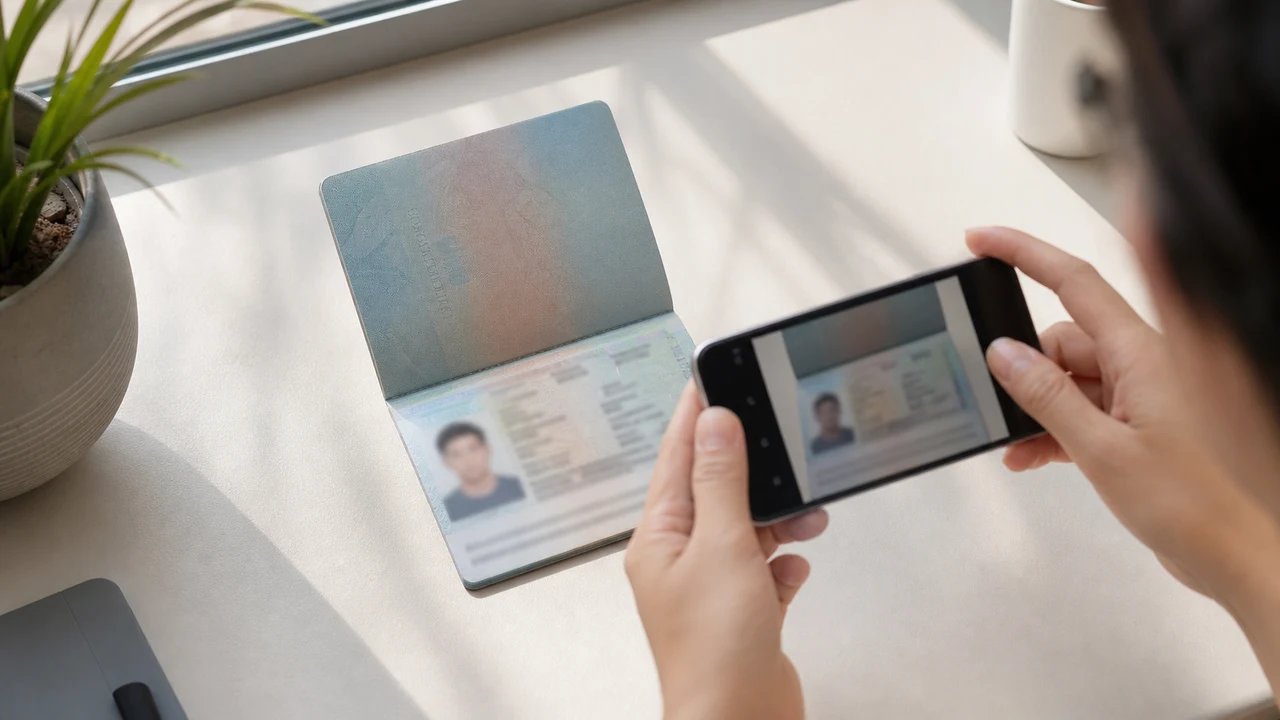
The photo conditions to check first
- The portal asks for a newly taken portrait and a passport Data Page image as two separate uploads, so the files are not interchangeable.
- Applicant reports describe passport-photo crops being rejected as “incorrect portrait photo” and the same image in both fields leading to rework or longer processing; these reports are not an official rejection rule.
- Prepare a fresh portrait for the portrait field and keep the passport Data Page image for the passport field.
- Before uploading, confirm that each selected file belongs to the correct field and follows the published portrait instructions.
Why a passport photo crop can lead to an “Incorrect Portrait Photo” report
Across applicant reports, people have described taking the face area from a passport Data Page image and using that crop as the portrait upload. Some reports describe an “incorrect portrait photo” rejection, while others describe rework or longer processing after the same image was selected for both upload fields.
These are observations reported by applicants, not a published official prohibition. The official portal instructions describe the portrait and passport Data Page as separate uploads; they do not state that a passport photo crop is prohibited.
Keep the two upload fields separate
The official user manual shows a portrait upload and a passport Data Page upload as separate steps. It also shows automatic validation, personal-data extraction, and a submission block when an image is invalid.
That official flow explains why the two fields should be treated as different files. It does not publish the exact rule that produces an “incorrect portrait photo” message or any processing-time threshold.
Prepare the two files correctly
- Take a new portrait for the portrait field instead of cropping the face from the passport Data Page image.
- Use the published portrait instructions: 4 × 6 cm, JPG / JPEG, under 2 MB, white background, straight face, no hat, no glasses, and formal clothes.
- Use the passport Data Page image only in the passport upload field, keeping the page clear and its corners visible.
- Before selecting each file, check the preview or filename so the portrait and passport images are not swapped.
- If the portal reports an incorrect portrait, prepare a fresh portrait and keep the two upload fields separate rather than duplicating one file.
Published portrait requirements for the official portal
- The official portal lists a newly taken 4 × 6 cm portrait in JPG / JPEG, under 2 MB, with a white background, a straight face, no hat, no glasses, and formal clothes.
- The portal also asks for a clear passport Data Page image. Keep that image complete and readable; do not treat its face area as the portrait file.
- The official instructions do not publish a pixel similarity score, crop ratio, or other numeric boundary for deciding whether a portrait is accepted.
What an incorrect-portrait report does and does not tell you
An applicant report can tell you that this combination of files was rejected or required another attempt. It cannot establish that the portal has a universal “passport crop” rule, nor can it reveal the exact automated check behind the message.
Use the report as a reason to separate the files and follow the published portrait instructions, not as evidence of an unpublished government requirement.
Prepare a new portrait without changing your identity
A face-photo workflow can help prepare a 4 × 6 cm portrait JPEG from a new capture. It does not decide whether the official portal will accept the file and cannot guarantee the portal’s validation result.
Keep the portrait truthful and use the passport Data Page image as the separate document upload. Do not digitally alter the face to imitate the passport image or to bypass the portal’s checks.
Related Vietnam e-Visa upload guides
For a broader file checklist, start with the guides below. They stay within the same official portal upload flow.
Create your photo in the browser
Prepare the photo for Vietnam e-Visa directly in your smartphone or computer browser. Creating and reviewing are free.
Open the web toolWhat this tool creates
- the required face photo (for digital upload)
- the passport biographical data page (photo page) (for document upload)
Also available as an iPhone appOpen the App Store
Official-source note
The portrait photo and passport data page image follow the Vietnam National Electronic Visa system instructions. The app prepares files; the visa application itself is submitted on the official evisa.gov.vn portal.
Photo conditions that can cause problems
The same kinds of issues can lead to e-Visa file rejections. These checks reduce upload problems, but they do not guarantee that your photo or application will be accepted.
-
Grey or patterned background
Shadows, color, or texture behind the head often cause a rejection. Use a plain white or very light wall and step forward to soften the shadow.
-
Glare on glasses or hidden eyes
Glasses reflections and frames covering the eyes are a leading reason for face photo rejection. Removing glasses before shooting is the safest choice.
-
Unreadable passport data page
If the MRZ lines, name, or passport number are blurred or hidden by glare, the file may be rejected even when the face photo looks fine.
-
File too large or wrong format
Export a JPG / JPEG under the official 2 MB ceiling. A PNG or oversized file can be rejected at upload even when the image itself looks correct.
-
Hair over the eyes or tilted head
Hair across the eyebrows or eyes and a tilted face make the portrait hard to verify. Keep the head straight and hair off the face.
Why use shoumei.org for Vietnam e-Visa files
Exact 4 × 6 cm / 2:3 export
The app outputs an 1200 × 1800 px JPEG that matches the Vietnam e-Visa portrait ratio, so you avoid the square-crop problem from the start.
Under 2 MB with readable detail
It compresses the JPEG below the official file-size ceiling while keeping facial detail and passport text as readable as the source image allows.
Background and face alignment guides
Built-in guides help you center the face, leave correct margins, and check the white background before export.
On-device privacy
Image processing stays on your device. No photo or passport image is uploaded to a server through shoumei.org.
shoumei.org is an independent file preparation tool. It is not affiliated with the Vietnam government or the evisa.gov.vn portal, and using it does not guarantee that your photo, passport image, or visa application will be accepted or approved.
FAQ
Can I use a crop of my passport photo as the Vietnam e-Visa portrait?
Do not use the passport Data Page image as the portrait upload. The official portal treats the portrait and passport image as separate fields, while applicant reports describe passport-photo crops being rejected as an incorrect portrait; the reports are not an official prohibition.
Why should I avoid using the same image in both Vietnam e-Visa upload fields?
The two fields represent separate uploads in the official portal flow. Applicant reports describe duplicated or swapped files leading to rework or longer processing, but they do not establish a published official processing rule.
What should the Vietnam e-Visa portrait file contain?
Use a newly taken 4 × 6 cm JPG / JPEG portrait under 2 MB, with a white background, a straight face, no hat, no glasses, and formal clothes. Upload the passport Data Page image separately.
Can the photo tool guarantee that the portal will accept my new portrait?
No. The tool can help prepare the portrait output, but the official portal performs its own validation and acceptance decision. Keep the two upload fields separate and confirm the latest portal instructions before submitting.
Official sources
- Vietnam e-Visa — Official portal photo upload terms (evisa.gov.vn) Checked: 2026-08-14
- Vietnam e-Visa — Official user manual / application instructions Checked: 2026-08-14